 PeerPlay
When a closed tester opens your Play Store link and sees "Your device isn't compatible with this version", Google Play has checked the tester's phone against what your test build requires and said no. The tester did nothing wrong, and in most cases your app isn't broken either. One setting, in your build or in Play Console, rules that phone out.
It matters during the 14 days because a tester who can't install your app can't use it. Opting in alone isn't the goal. You want 12 people who actually have the app on their phones, so find the cause quickly or replace the tester.
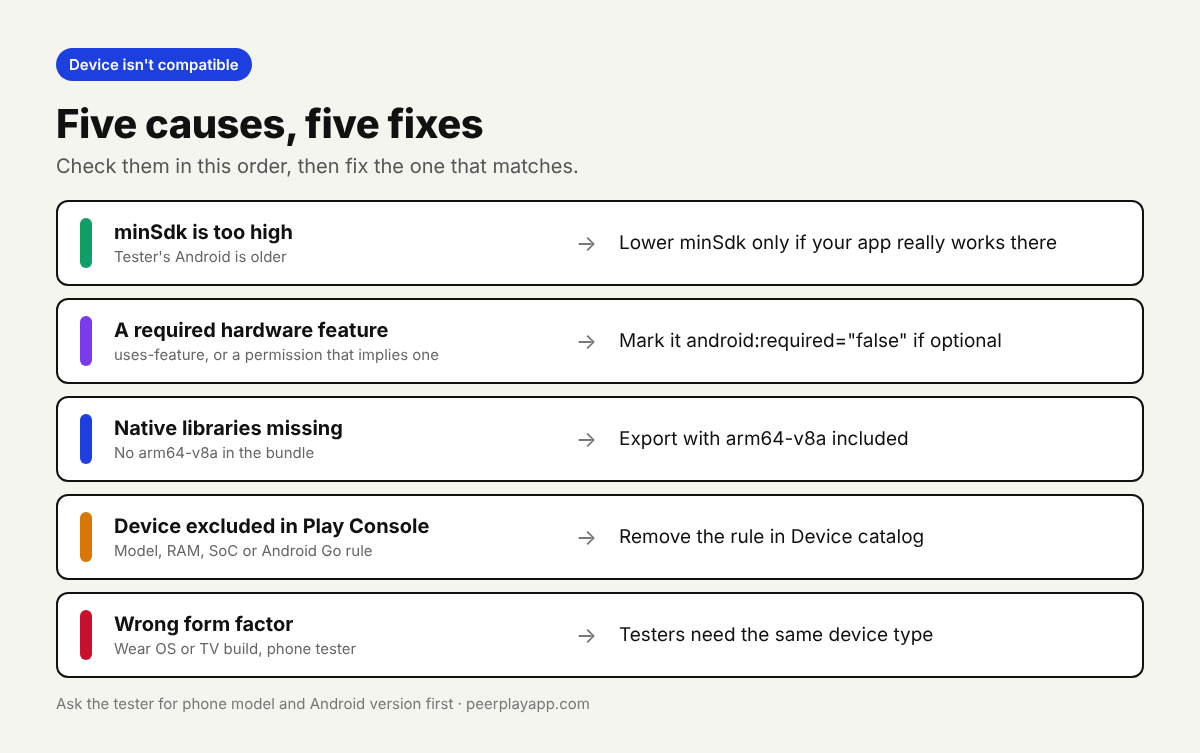
Five reasons a tester's device isn't compatible
The Android version is too old. If your minSdk is higher than the tester's Android version, Play hides the build from that phone. Google's help page gives the example that setting minSdk to Android 9 makes only Android 9 and newer devices eligible. Frameworks raise this value in their templates from time to time, so check the final merged manifest, not only what you remember setting.
The app requires a hardware feature the phone lacks. Every uses-feature line in your manifest is treated as required unless it says android:required="false". Some permissions also imply features, so a camera, NFC or GPS permission can quietly rule out phones without that hardware. If the feature is optional in your app, mark it as not required.
Native libraries don't match the phone's processor. Games and apps with native code ship libraries for specific ABIs. If your bundle only contains x86 or only 32-bit libraries, phones with another architecture may be left out. Export with arm64-v8a included, since that's what most current phones use.
You excluded the device in Play Console. Device exclusions can target a single model or a rule based on RAM or system on chip, and there's a separate toggle for Android Go devices. Google's help page says exclusions override what your manifest declares, so a rule you set months ago can block a tester today.
The build is for another form factor. A Wear OS or Android TV build won't install on a phone, and the reverse is also true. If you test a watch face or TV app, your testers need that device, not just the phone app.
Look up the tester's phone in the Device catalog
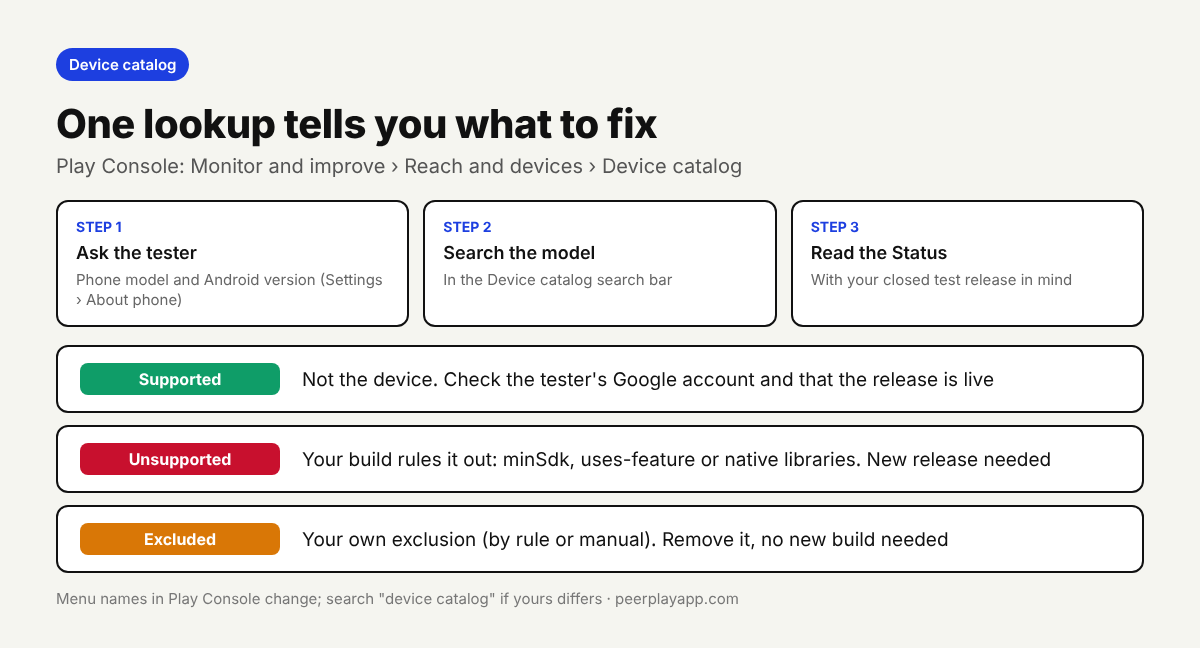
Guessing wastes days. Ask the tester for two things: the exact phone model and the Android version, both shown under Settings, then About phone. Then open the Device catalog in Play Console. Google's help page currently places it under Monitor and improve, then Reach and devices, then Device catalog. Menu names move, so search for device catalog if yours looks different.
Search for the model and read the Status column. Supported means Play sees no problem, so look at the tester's account or link instead. Unsupported points to your manifest or bundle: minSdk, features or native libraries. Excluded by rule or Manually excluded points to your own exclusion settings, which you can change under Manage exclusion rules or on the device's details page.
Google also notes that a device's status can differ between tracks. A phone can be supported in production and not in your closed test if the test bundle requires more features. Check the status with your closed testing release in mind, not an older production build.
Fix it and get the tester back in
If the cause is in your manifest or bundle, change it, raise the version code and upload a new release to the same closed testing track. Once the release is reviewed and live, ask the tester to open the opt-in link again and install from the Play Store page. If the cause is an exclusion, remove the rule or the device and save. You don't need a new build for that.
Some phones you should not chase. If a tester runs an Android version your app truly can't support, lowering minSdk just to keep one tester can create more work than it saves. Replace that tester instead. That's one reason to recruit 15 to 20 testers rather than exactly 12, so one incompatible phone doesn't put your count at risk.
When the catalog says Supported and the tester still can't install, the problem is usually the account, not the device. The tester may be signed in to the Play Store with a different Google account than the one on your list, or the release isn't available yet. Our guide to the tester who can't find your app from the opt-in link covers those cases.
Check device reach before the 14 days start
Open the Device catalog before you invite anyone. Sort by status, export the device list if you want to scan it, and ask yourself whether your testers' phones are likely to be on it. It takes a few minutes and avoids losing days of your test to an install that was never going to work.
If you find testers through PeerPlay, you get developers with their own mix of phones, and testers open your app from PeerPlay every test day. If one tester never seems to open it, ask early whether the install worked.
FAQ
Does a tester with an incompatible device count toward the 12 testers?
They can opt in, but they can't install or use your app, so don't rely on them. Fix the cause or replace the tester so you have at least 12 who actually use the app.
Why can some testers install the app and others can't?
Their phones differ in Android version, hardware features, processor or model. Look up a phone that fails in the Device catalog and read its status to see which requirement it misses.
Do device exclusions apply to internal testers?
Google's help page says device exclusion rules don't apply to internal testers. They do apply to closed testing, so an exclusion can block a closed tester even if the same person installed an internal build.
Will clearing the Play Store cache fix it?
Only if Play cached an old result. If the Device catalog shows the phone as unsupported or excluded, the tester can't fix it on their side. The change has to come from your build or your Play Console settings.