 PeerPlay
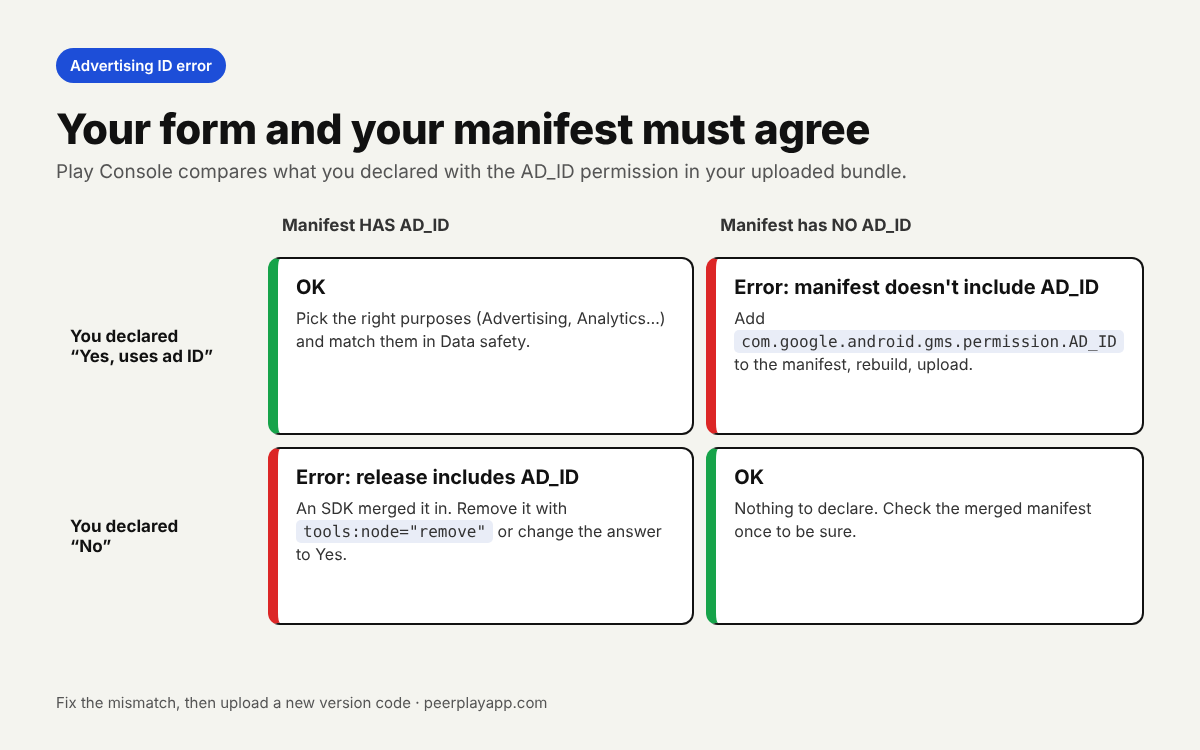
You upload your first bundle, set up the closed testing track, and Play Console stops you with a message about the advertising ID. It might read "This release includes the com.google.android.gms.permission.AD_ID permission but your declaration on Play Console says your app doesn't use advertising ID". Or the reverse: your declaration says the app uses the ID, but a manifest in one of your active artifacts doesn't include the permission.
Both versions mean the same thing. Play Console compares a form you filled in with a permission inside your bundle, and they disagree. The fix takes a few minutes once you know which side is wrong.
New to the rule? Start with the full guide: 12 testers for 14 days on Google Play, step by step.
What the advertising ID declaration is
The advertising ID is a resettable ID that ad and analytics SDKs use. Google's Advertising ID policy page says apps that target Android 13 (API 33) or higher must declare the com.google.android.gms.permission.AD_ID permission in the manifest to read it. Without the permission, the app gets a string of zeros instead of the real ID.
Play Console also asks you to declare it yourself. You find the form under Policy and programs, then App content, then Advertising ID (menu names can shift between Console versions). It asks whether your app uses an advertising ID and, if yes, for what: advertising or marketing, analytics, fraud prevention and security, personalization and similar purposes. Play then checks every bundle you upload against that answer.
The two mismatches behind the error
Mismatch one: you answered No, but your bundle contains AD_ID. This is the most common case, and it usually isn't your own code. Google's page notes that SDKs such as play-services-ads already declare the permission in their library manifest, and it is merged into your app's manifest by default. Analytics libraries can do the same.
Mismatch two: you answered Yes, but the manifest doesn't contain AD_ID. This happens when you declared ad use to be safe, or when your build tool strips the permission. The fix is to either add the permission or change the answer to match what the app really does.
Pick the direction that is true for your app. Don't just flip the answer until the error goes away, because the same answer feeds into your Data safety form and policy review.
What to answer in the advertising ID form
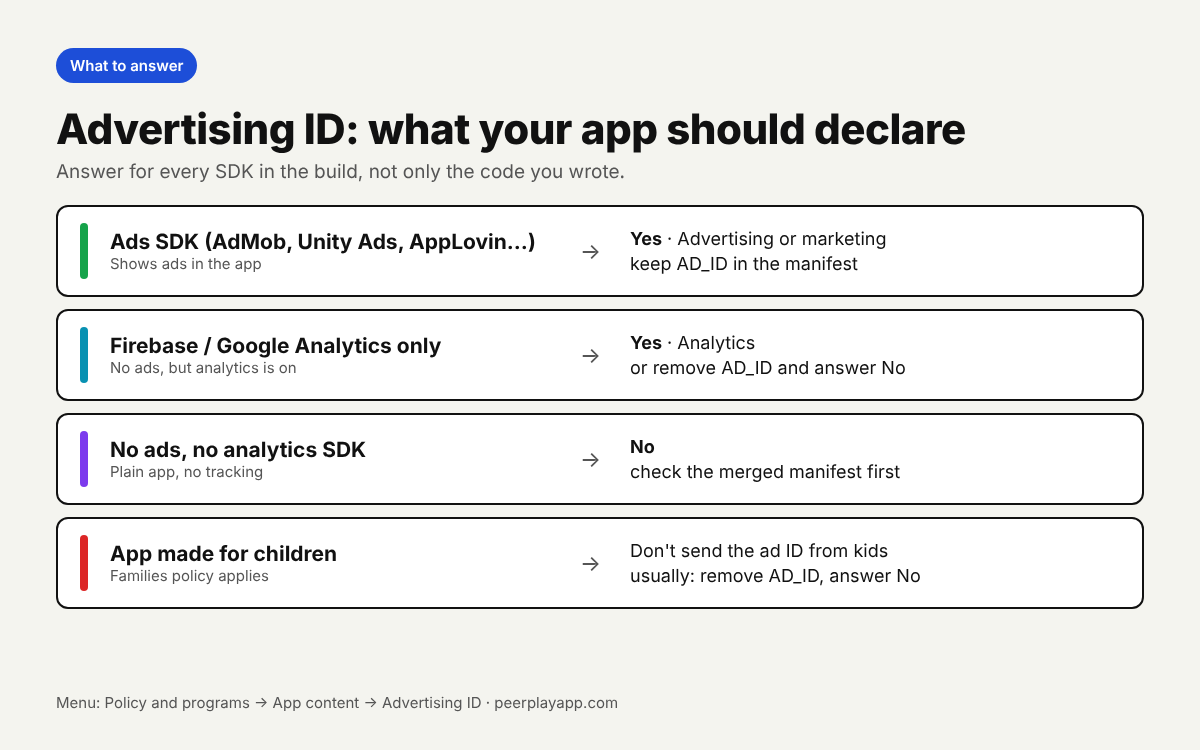
If the app shows ads through AdMob or another ad network, answer Yes, choose advertising or marketing, and keep AD_ID in the manifest. If you run Firebase or Google Analytics but no ads, you can answer Yes with analytics, or remove the permission and answer No. If the app has no ads and no analytics SDK, answer No, but check the merged manifest first, because a library may still bring the permission in.
If your app targets children, the Families policy applies. Google doesn't allow transmitting the advertising ID from children, so apps aimed only at kids usually remove AD_ID and answer No. Check Google's Families policy page for your case before you decide.
Whatever you pick, keep your Data safety form consistent with it. If you say the app collects device IDs for advertising there, the advertising ID answer should not be No.
How to remove the AD_ID permission from your manifest
To answer No when a library adds the permission, tell the manifest merger to drop it. In app/src/main/AndroidManifest.xml add xmlns:tools="http://schemas.android.com/tools" to the manifest tag, then add a uses-permission line for com.google.android.gms.permission.AD_ID with the attribute tools:node="remove". The merger removes the permission no matter which SDK declared it.
In Flutter the file is android/app/src/main/AndroidManifest.xml. Expo users can do the same with a config plugin or the android.blockedPermissions field in app.json. Unity users can use a custom main manifest. In no-code builders like FlutterFlow, Adalo or MIT App Inventor, look for an advertising ID or permissions setting in the Android build options, since you can't edit the manifest directly.
Check the result before you upload. In Android Studio, open AndroidManifest.xml and switch to the Merged Manifest tab, or open the .aab with the APK Analyzer. If AD_ID is still listed, something else is adding it back.
Why the error stays after you fixed it
The check runs on all active artifacts, not only your newest upload. If an old bundle with the wrong permission is still live on internal testing or another track, Play Console keeps complaining. Release your fixed build to every active track, or remove the old release from the track that still uses it.
Also remember that each upload needs a new version code. Bump versionCode, rebuild, upload, and the warning should clear once no active bundle disagrees with your answer.
Does this block closed testing?
It can block sending the release for review, so fix it before you invite anyone. Your testers can only install once the closed testing release is reviewed and available, and the 14-day clock only counts days when your testers are opted in and using a live build. A day lost to a policy warning is a day added to your timeline.
Once the release is through, you still need 12 opted-in testers for 14 days in a row. If you don't have them yet, PeerPlay is a free Android app where developers test each other's apps, so you can find your testers while you test theirs.
FAQ
Why does Play Console say my release includes AD_ID when I never added it?
A library added it. Ad and analytics SDKs can declare the permission in their own manifest, and it is merged into yours by default. Check the merged manifest to see it.
Does Firebase Analytics mean my app uses advertising ID?
If the permission is in your build and analytics is on, answer Yes with analytics as the purpose. If you don't need it, remove the permission with tools:node="remove" and answer No.
I fixed the declaration but the error is still there. Why?
An older bundle is probably still active on another track, such as internal testing. Play checks every active artifact, so release the fixed build there too or remove the old release.
Does the advertising ID error reset my 14-day closed test?
Fixing it needs a new upload, and an update doesn't reset the 14 days by itself. But if the error delays your first closed testing release, your 14 days start later.