 PeerPlay
Pre-launch report errors in Google Play Console are problems that Google's own test devices hit while automatically opening and tapping through your build: mostly crashes, ANRs (app not responding), defective libraries and restricted APIs. Warnings and minor issues are softer findings about speed and accessibility. Google's help pages don't say that any of them blocks a release by itself, but an error is a real failure on a real device, so treat it as a bug report.
This guide covers how the report is made, what the three severity levels mean, what to fix first while you're in closed testing, and why the report sometimes shows nothing but your login screen.
How the pre-launch report is made
According to Play Console Help, a pre-launch report is generated automatically when you upload an app bundle or APK, subject to capacity in Google's device lab. Google installs the build on a set of Android devices in its test lab, then launches the app and crawls it for several minutes, doing basic things such as typing, tapping and swiping.
Results usually arrive within about an hour. If the report still isn't complete after two days, Google's advice is to upload the build again. The report is grouped into stability, performance, accessibility and screenshots, so you can see what the crawler saw on each device.
The crawler is a robot, not a person. It doesn't know what your app is for. It finds things that break when someone taps around at random, which is useful, but it's a different kind of test from twelve people using the app for two weeks.
Pre-launch report errors, warnings and minor issues
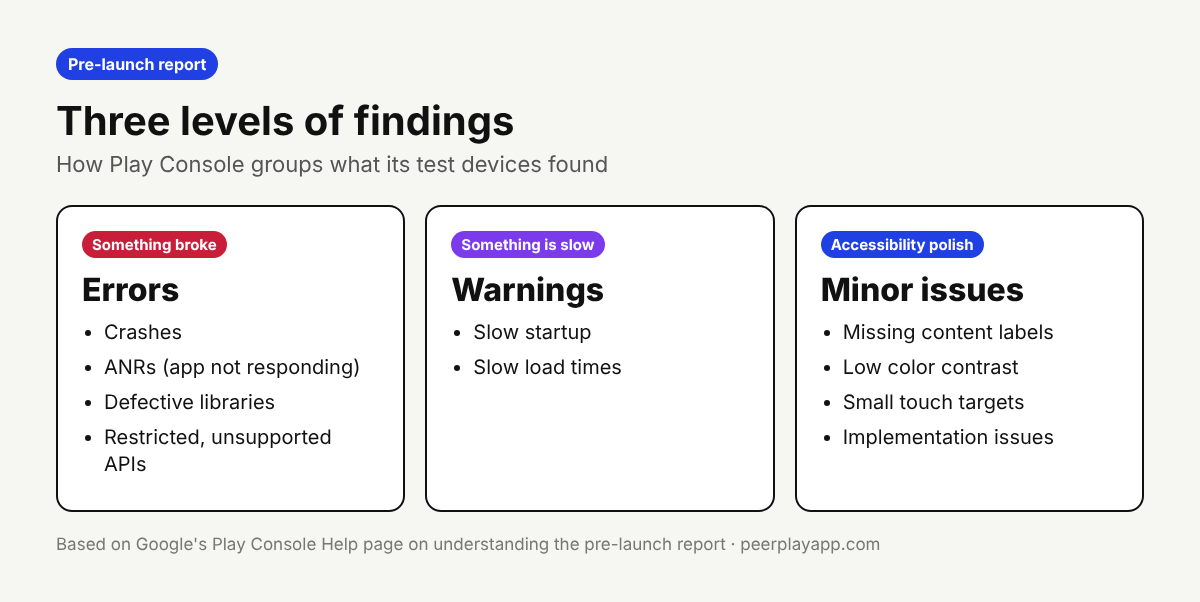
Play Console sorts findings into three levels. Errors include crashes, ANRs, use of defective libraries, and use of unsupported APIs that have been restricted. Warnings include slow startup and load times. Minor issues include missing content labels, color contrast problems, small touch targets and other accessibility implementation issues.
A crash means the app closed on a test device. An ANR means the app froze long enough for Android to show the App Not Responding dialog. The restricted API finding sits under stability as OS compatibility: your app, or more often a library inside it, calls a non-SDK interface that newer Android versions limit.
Open a finding to see which devices and Android versions it happened on. For a crash, the stack trace is typically the place to start, because the first lines usually show if the problem is in your code or in a third-party SDK.
What to fix first during closed testing
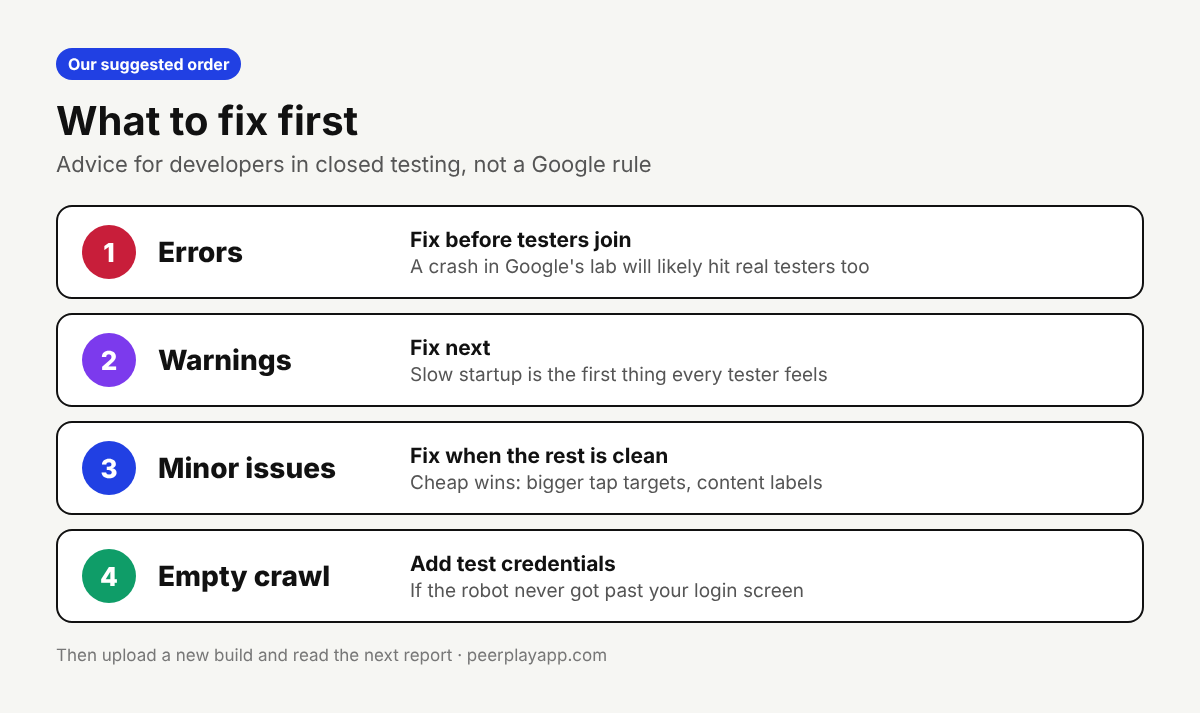
Google's help pages don't say that a pre-launch report issue blocks publishing by itself, and nobody outside Google can see how reviewers weigh it. So what follows is our advice on order, not a Google rule.
Fix errors first. A crash on launch in Google's lab will very likely hit some of your testers too, and a tester who can't open the app stops opening it. Reproduce the crash on the same Android version if you can, fix it, upload a new build and wait for the next report. Restricted API findings often go away when you update the SDK that triggers them.
Then look at warnings. Slow startup isn't a failure, but it's the first thing every tester feels. Minor accessibility issues can usually wait until the errors are gone. Larger touch targets and proper content labels are cheap to fix though, and they make the app better for everyone.
Some findings won't matter for your case, like a contrast note on a splash screen you designed on purpose. It's fine to note those and move on.
Why the report only shows your login screen
The most common reason for a report that looks clean but empty is a sign-in wall. The crawler can't get past a login screen without help, so it taps around the first screen for a few minutes and finds nothing wrong. That tells you nothing about the rest of the app.
Play Console lets you give the pre-launch report test account credentials so the crawler can sign in. Per Google's help page, apps that use Sign in with Google don't need them, and credentials can't be used in apps that draw custom controls with OpenGL or in apps built on a WebView. For those cases, and for screens the crawler keeps missing, Google also offers a Robo script, a game loop for games, and up to three deep links that are each crawled for about 30 seconds.
Use a throwaway test account for this, never a real user's login.
What the pre-launch report can't test
The help page lists a few limits. Tests run on devices located in the United States, on Android 9 and above. The crawler can't make purchases, so anything behind a paywall stays untested. Apps for rooted devices aren't supported, and apps without a main launch activity, such as launchers, widgets, keyboards and watch faces, can't be tested this way.
That's why the pre-launch report doesn't replace closed testing. For new personal developer accounts, Google asks for at least 12 testers who stay opted in for 14 days in a row before you can apply for production access, and the application asks how testers used the app and what feedback you got. A robot crawl answers neither question.
If you still need those testers, PeerPlay is a free exchange where Android developers test each other's apps for the 14 days. You test someone's app and they test yours. Clean up the errors in your pre-launch report first, so the people who join get a build that opens.
FAQ
Do pre-launch report errors block my app from being published?
Google's help pages for the pre-launch report don't say that its findings block a release by themselves. Errors are still real crashes or freezes on real devices, so fix them before you send the build to testers or apply for production access.
How long does the pre-launch report take?
Google says results usually arrive within an hour of uploading your app bundle, depending on capacity in its device lab. If the report isn't complete after two days, upload the build again.
Why is my pre-launch report empty?
Usually because the crawler couldn't get past your login screen, so add test account credentials or deep links in the pre-launch report settings. Apps without a main launch activity, such as widgets, keyboards and watch faces, can't be tested by the report at all.
What is an ANR in the pre-launch report?
ANR stands for App Not Responding. It means the app froze on a test device long enough for Android to offer to close it. Play Console lists ANRs as errors, next to crashes.
Does the pre-launch report count toward the 12 testers?
No. The production access requirement is about people who opt in to your closed test and stay opted in for 14 days. Google's lab devices are an automated check on your build, not testers on your list.