 PeerPlay
The Play Console error "Your Android App Bundle is signed with the wrong key" means the file you uploaded was signed with a different upload key than the one Google has on record for this app. The fix is to sign the bundle with the original keystore. If that keystore is lost, you can request an upload key reset in Play Console and keep the same app.
The full message usually goes on to show two SHA-1 fingerprints: the certificate your bundle is expected to be signed with, and the certificate that signed the file you uploaded. Those two lines are the whole diagnosis, so don't close the dialog before you copy them.
Upload key and app signing key: what the error is about
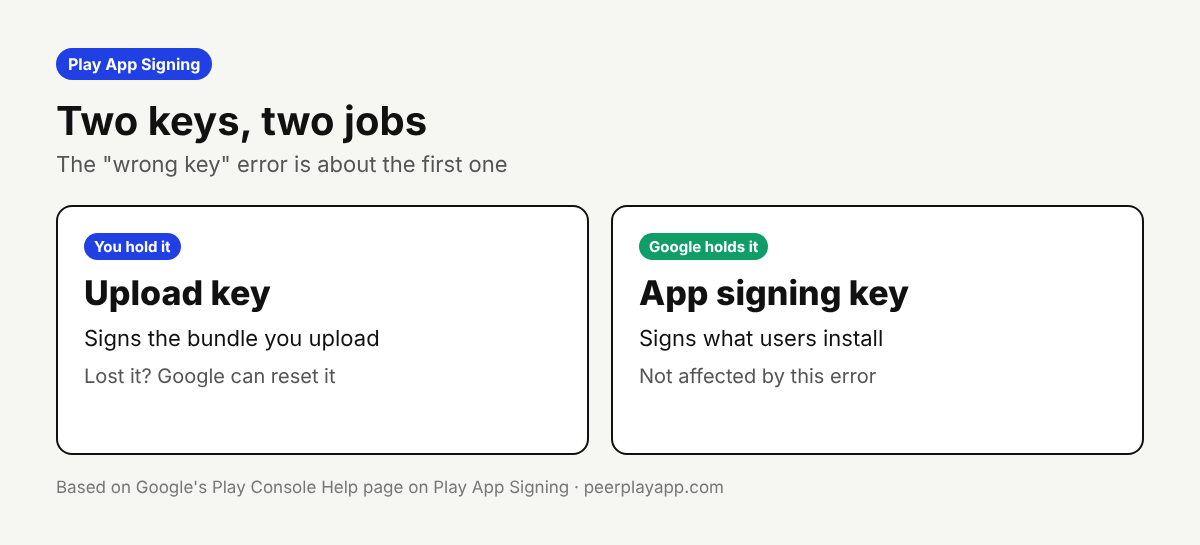
With Play App Signing there are two keys. Google's help page describes the upload key as the one you use to sign your app bundle before uploading it, which Google uses to verify your identity. The app signing key is the one Google uses to sign the final APKs delivered to users' devices.
The wrong key error is about the upload key. Play Console remembered the certificate of the first bundle you uploaded for this app, and the new file doesn't match it. Nothing is wrong with your app or your code. The signature simply comes from another keystore.
This matters for how worried you should be. The same help page says that if you lose your upload key or suspect it was compromised, you are not locked out of your app, because Google can reset it for you.
Find out which key Play Console expects
Start with the fingerprints. Play Console shows the certificates on its Play app signing page. Google's help page currently gives the path as Protected with Play, then Play Store protection, then Manage Play app signing. Menu names in Play Console move from time to time, so search for app signing if yours looks different. The page has an App signing key section and an Upload key certificate section.
Then check your local keystore. Run keytool -list -v -keystore your-keystore.jks and compare the SHA-1 it prints with the expected fingerprint from the error. If they match, you have the right file and the build is picking up a different one. If they don't match, keep looking through old machines, backups and password managers.
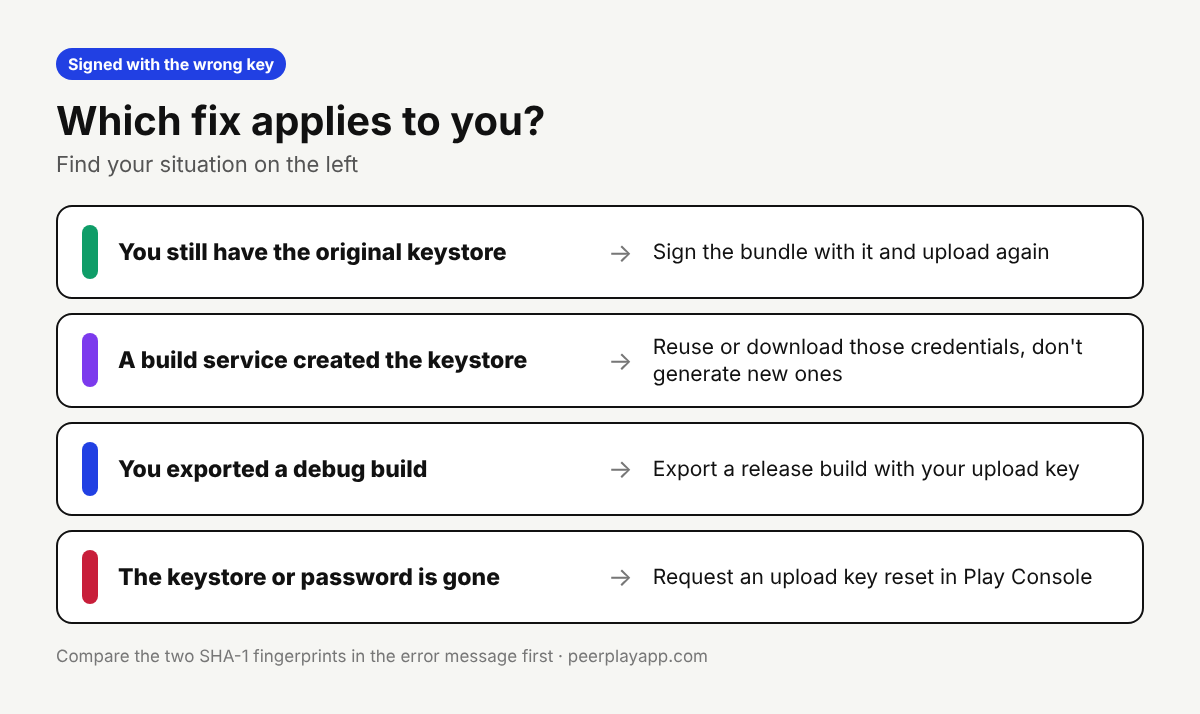
The usual causes are short. You exported a debug build, which is signed with a debug key. You moved to a new computer and a new keystore was generated. Or a build service created the first keystore for you and a later build generated a fresh one.
Fix it when you still have the right keystore
If the original keystore exists, point your release build at it. In Android Studio that's the signing config for the release build type. In Flutter it's the key.properties file. In Godot and Unity it's the release keystore fields in the export or publishing settings. Build a release bundle, not a debug one, and upload again.
If a build service made the key, the keystore lives in that service. Forum threads about this error are full of Expo, Thunkable, Median and similar tools. Look for the credentials section of the service and reuse or download the existing Android keystore. Don't let the tool generate new credentials for an app that already has uploads.
Request an upload key reset when the keystore is lost
If the keystore or its password is gone, use the reset that Google describes on its Play App Signing help page. First create a new upload key, for example in Android Studio. Then export its certificate to a PEM file with keytool -export -rfc -keystore upload-keystore.jks -alias upload -file upload_certificate.pem, using your own file name and alias.
Open the Play app signing page, find Upload key certificate, and click Request upload key reset. Enter the reason, upload the PEM file and click Request. Configuring Play App Signing needs admin permission on the developer account, so ask the account owner if you don't see the option.
The help page doesn't state how long a reset takes, and the new key may not be usable right away, so wait for Google's confirmation before you upload. This time, back up the new keystore and its passwords in two places.
What the error means for a running closed test
If this hits you in the middle of a 14-day closed test, the test itself keeps going. Google's testing requirement is about testers who stay opted in for 14 days in a row. Nothing in it ties those days to new uploads. Your testers keep the build they already have, and they just don't get the update until the key is sorted.
So don't create a new app with a new package name to get around the error. That would mean a new closed test and new testers from day one. Tell your testers an update is coming and fix the key.
If you're still collecting testers for that closed test, PeerPlay is a free exchange where Android developers test each other's apps for the 14 days. You test someone's app and they test yours.
FAQ
Can I fix the wrong key error without the original keystore?
Yes. Google can reset the upload key. Create a new key, export its certificate as a PEM file and use Request upload key reset on the Play app signing page in Play Console.
Does an upload key reset affect people who already installed my app?
The upload key only signs what you send to Google. Per Google's help page, the app signing key is the one that signs the APKs delivered to users, and a reset request is about the upload key, so installed copies shouldn't be affected.
How do I check which key signed my app bundle?
The error message shows the SHA-1 fingerprint of the certificate that signed your upload. To check a keystore file, run keytool -list -v -keystore your-keystore.jks and compare the SHA-1 with the expected fingerprint in the error.
Is the debug key causing the wrong key error?
Often, yes. A debug build is signed with a debug key that Play Console will never match with your upload key. Export a release build signed with your upload keystore.
Should I just create a new app with a new package name?
Only as a last resort. A new app loses its installs and reviews, and on a new personal developer account it has to go through closed testing with 12 testers for 14 days again. An upload key reset keeps the same app.