 PeerPlay
The simplest way to know that testers really used your Wear OS watch face is to ask for one screenshot from the watch every day and log it in a sheet next to each tester's name. Play Console shows how many people opted in. It doesn't show whether the face was ever on a wrist.
We ran into this while planning PeerPlay's first Wear OS campaign, a paid watch face with 15 testers that is planned to start on November 23, 2026. Our usual tracking doesn't work for a watch, so we built the test around screenshots. Here's the method, so you can run it yourself.
Why normal tracking fails for a watch face
For phone apps, PeerPlay records a test day when the tester starts the app from PeerPlay and keeps it open for at least 30 seconds. That check runs on the phone. It can't see a watch.
A watch face is also a different kind of product. Nobody opens it. It's simply there, all day, behind every glance at the time. There is no session to measure, so the usual signals of activity don't exist.
That leaves you with the opt-in count, and anyone with a Google account can opt in to a watch face test from a browser without owning a watch. If you want to know what happened on real wrists, you have to ask for evidence a person can only produce with the watch in hand.
Step 1: build a roster before day 1
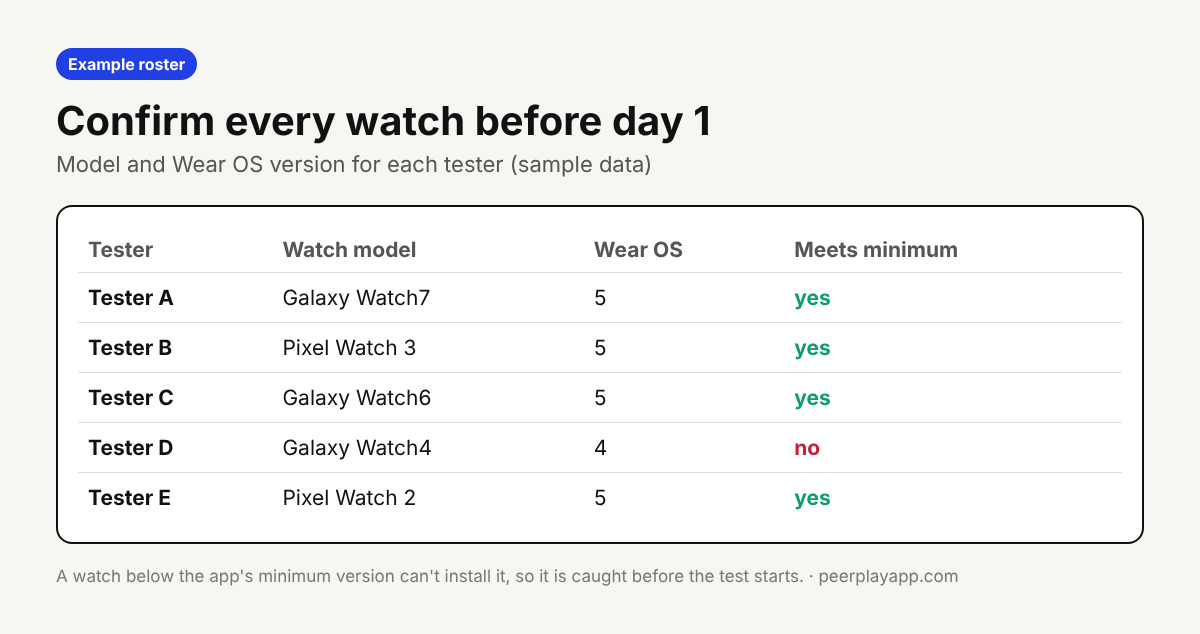
Before the test starts, collect four things from every tester: the Google account email they use on Google Play, the watch model, the Wear OS version, and a screenshot of the watch's About screen that confirms the last two.
Compare each row with your app's minimum version. A tester whose watch is too old can opt in but can't install, and you'll only find out when they go quiet. In our campaign the developer sees and approves the roster before the test begins.
Recruit more people than you need. We aim for a few spare testers, because replacing a watch owner on day 6 takes much longer than replacing a phone tester.
Step 2: one watch screenshot per day
Ask each tester for one screenshot a day that shows your watch face running. The time on the face is a natural timestamp, and you can ask for something specific on certain days, such as a chosen accent color or the always-on screen, so the same image can't be reused.
Taking a screenshot on a watch is quick on current models. According to 9to5Google, on a Pixel Watch with Wear OS 4 or newer you press the crown and the side button at the same time, and on a Galaxy Watch you press both side buttons together. Buttons and where the image is saved differ by model, so tell testers to try it once on day 1.
A phone photo of the wrist is a fine fallback, and for always-on mode it's often the better choice.
Step 3: keep a simple daily log
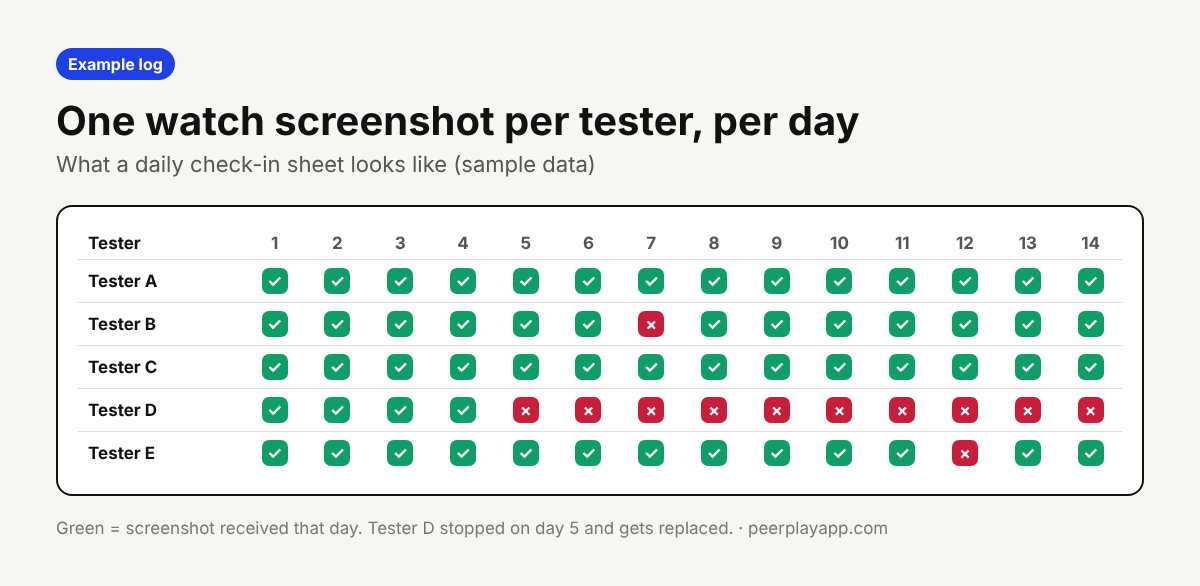
Use one sheet: testers down the side, days 1 to 14 across the top, one cell per screenshot. Fill it in every day. Gaps show up at a glance.
One missed day is normal. Send a reminder. Two or three in a row usually means the tester has stopped, and that's the moment to bring in a spare. Keep watching the opted-in count in Play Console too, because the 14 days need at least 12 testers opted in throughout.
In our campaign the developer gets view access to the sheet and a summary on day 7 and at the end. If you're running your own test, the sheet is for you, and it turns into your notes for the production application.
What the screenshots are and are not
Daily screenshots are not something Google asks for, and Google doesn't see them. Google's stated requirement is 12 testers opted in for 14 days in a row. The screenshots are for you: they tell you that the feedback comes from people who really wore the face, and they catch dropouts early.
They also give you honest material for the production application, where Google asks how you tested your app and what you changed. A group of testers on different watch models sending a screenshot every day is an easy thing to describe truthfully.
If recruiting watch owners and chasing screenshots sounds like a second job, that's the work PeerPlay's Wear OS and Android TV package covers. For phone apps, the free tester exchange in the PeerPlay app tracks test days automatically.
FAQ
Does Google check whether testers used my watch face?
Google doesn't publish exactly how it judges a closed test. Its stated rule is at least 12 testers opted in for 14 days in a row, and the production application asks how you tested. Screenshots are your own evidence, not a Google requirement.
How do you take a screenshot on a Wear OS watch?
It depends on the model. 9to5Google reports that Pixel Watches on Wear OS 4 or newer use the crown and side button pressed together, and Galaxy Watches use both side buttons. A phone photo of the watch also works.
How many spare watch testers should I recruit?
There is no official number. We plan a few more than the target, because a watch owner who drops out mid-test is much harder to replace than a phone tester.
Can PeerPlay's app track a watch face test automatically?
Not today. The PeerPlay app confirms activity on a phone, so our Wear OS campaign is tracked by hand with a roster, daily watch screenshots and reports to the developer.