 PeerPlay
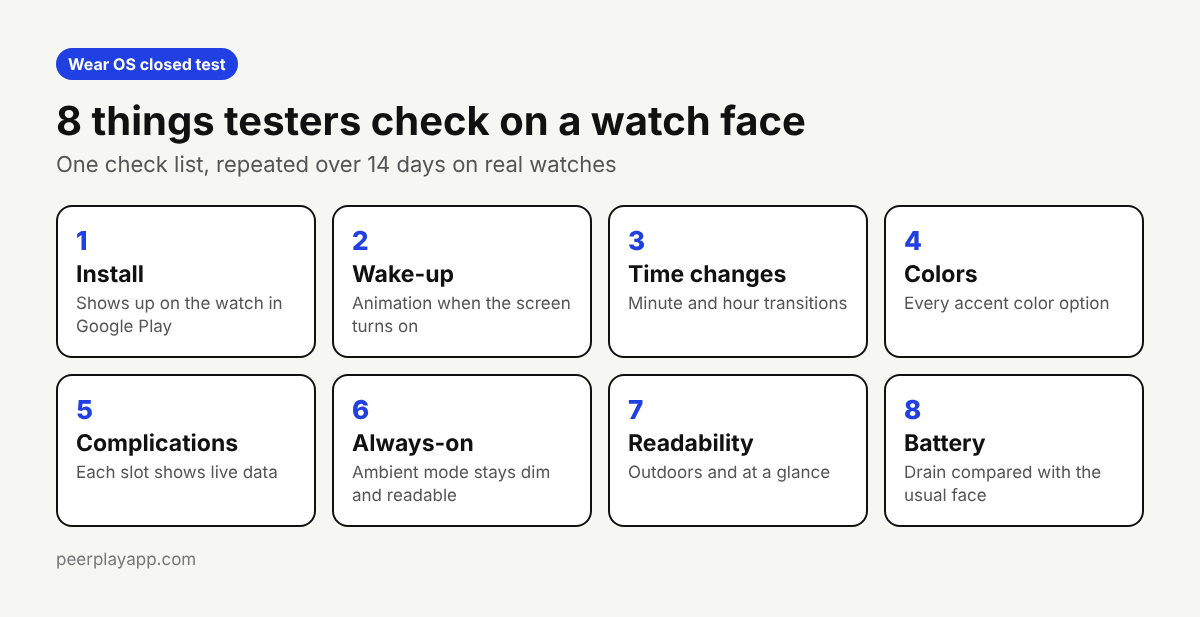
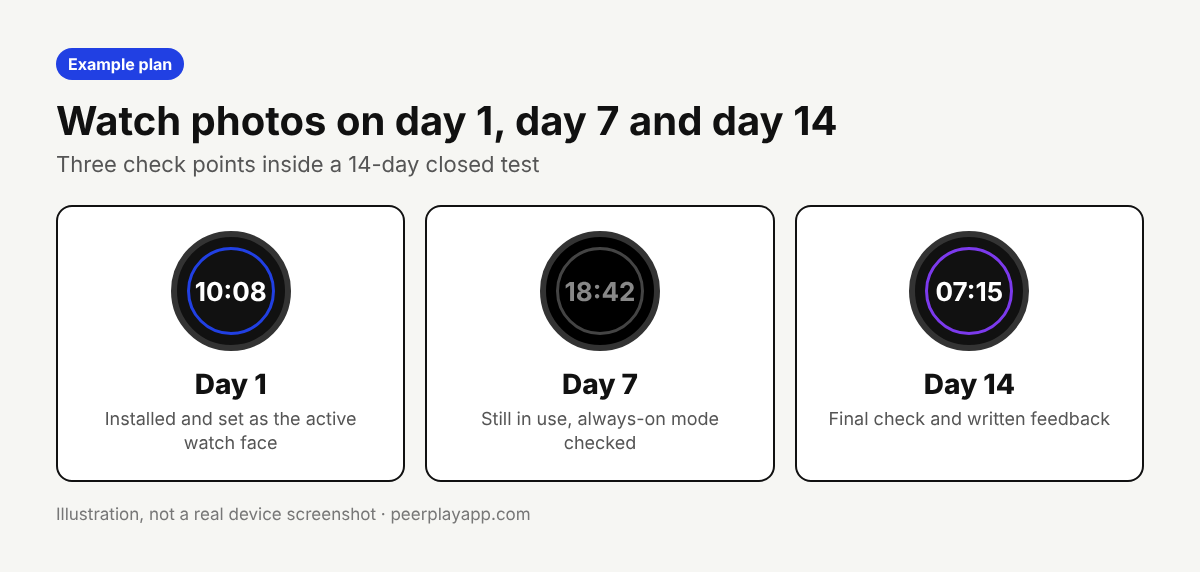
To test a Wear OS watch face properly, put it on a closed testing track for Wear OS, recruit testers who own a real watch, and give them the same short list to check over 14 days: install, wake-up animation, time changes, color options, complications, always-on mode, readability and battery. Ask for a watch photo on day 1, day 7 and day 14 so you can see it stayed in use.
This is the plan we're using for PeerPlay's first Wear OS campaign, a paid watch face with 15 testers that is planned to start on November 23, 2026. Nothing below needs special tools, only a clear list and people with watches.
Set up Play Console for Wear OS first
A watch face is released on the Wear OS form factor, not the phone one. Samsung's guide for watch face developers says to open Manage form factors in Play Console, add Wear OS, and then pick Wear OS only when you create the release on your closed track. If the build sits on the phone track, testers opt in and find nothing to install on the watch.
The tester rule is the same as for phone apps. Personal developer accounts created after November 13, 2023 need at least 12 testers opted in to a closed test for 14 days in a row before applying for production. Samsung's page still quotes the older number of 20. Google's current requirement is 12.
Before you invite anyone, run the path yourself with a second Google account: opt in from the link, open Google Play on the watch and install. If you can't install it, your testers can't either.
The 8 things testers check
Install. Does the watch face appear in Google Play on the watch after opting in, and does it install and apply without errors?
Wake-up. If your face animates when the screen turns on, does the animation play smoothly every time, or does it stutter or skip?
Time changes. Watch a minute change and, at least once, an hour change. Hands, digits or discs should move cleanly and land in the right place.
Colors. Try every accent color or style you offer. Google's Wear OS quality guidelines expect a customizable watch face to work in each of its variations.
Complications. Fill each slot with real data such as steps, battery or weather, and check that it shows and updates. Google's guidelines allow no more than 8 complication slots.
Always-on mode. Lower the wrist and look at the dimmed screen. Google's guidelines say a watch face must have an always-on display mode that lights no more than 15 percent of pixels. Is the time still readable?
Readability. Check the face outdoors in daylight and at a quick glance. Google asks that the time of day is displayed clearly.
Battery. Ask testers to compare a normal day with your face against their usual one. Nobody needs lab numbers. A tester who says the watch died by dinner is telling you something.
A day 1, day 7 and day 14 plan
Day 1 is about install. Every tester installs the watch face, sets it as active and sends a photo of the watch. Problems here are usually setup problems, and you want them found on the first day, not the tenth.
Day 7 is the middle check. Testers send a second photo, this time including always-on mode, and a few lines on anything that annoyed them during a normal week. This is when battery and readability comments get useful, because people have lived with the face.
Day 14 is the final check: a last photo and written feedback against the 8 points. If you shipped an update during the test, ask testers to confirm the fix on their own watch.
In our campaign we also ask for a short daily check-in between those points, so a tester who went quiet is noticed within a day and can be replaced.
Testing a paid watch face
If your watch face is paid, think about how testers get it. In our first campaign the developer is providing one-time Google Play promo codes, one per tester plus a few spare, so nobody pays to test. Create them in Play Console before the test starts and check their expiry date covers all 14 days.
Also confirm every tester's watch model and Wear OS version before day 1. A face that needs Wear OS 5 won't install on an older watch, and it's better to learn that from a list than from a confused tester.
What you get at the end
After 14 days you have more than a tester count. You have notes on eight specific points from people with different watches, photos from three dates, and a list of what you fixed. That's what Google asks about when you apply for production: how you tested and what you changed.
Finding 12 or more people who own a Wear OS watch is the hard part. PeerPlay offers a Wear OS and Android TV package where we recruit testers with the right device and track the test for you. For phone apps, the free tester exchange in the PeerPlay app is still the quickest start.
FAQ
Do testers need a real Wear OS watch?
For useful feedback, yes. Anyone with a Google account can opt in to a closed test, but only someone with a compatible watch can install the face and check animation, always-on mode and battery.
How many testers does a watch face need on Google Play?
The same as any app from a new personal account: at least 12 testers opted in to the closed test for 14 days in a row. Recruit a few extra, because replacing a watch owner mid-test is slow.
How do testers get a paid watch face without paying?
One option is Google Play promo codes created in Play Console and sent to each tester. That is what the developer in our first Wear OS campaign is doing.
What does Google require for always-on mode?
Google's Wear OS quality guidelines say a watch face must have an always-on display mode that lights no more than 15 percent of pixels.